Connect a smart lock to property management software only when the lock provider and the management platform both support that connection. The practical goal is to match each lock to the correct property, automate only the permissions you intend, and keep a tested backup-entry plan.
- Confirm that the lock provider and property management platform support each other before setup.
- Match every physical lock to the correct property and entrance record.
- Test a staff code and guest or resident code before relying on automation.
- Keep a documented backup-entry plan if the connection or power fails.
Start with the integration map
List each property, entrance, lock model, and the account that controls it. A smart-lock integration is not a generic feature: a platform may support some lock providers, models, or connection methods but not others.
Guesty's Locks Manager is one example of a platform that says it connects supported locks to a central dashboard, creates reservation-linked access codes, and removes them at checkout. That does not show that your lock or management platform is compatible. Check both providers' current documentation before changing access settings.
Confirm ownership and administrator access
Before linking accounts, confirm who owns the management-platform account and the smart-lock administrator account. Use an organization-controlled email address where possible, and document who can remove staff access later.
You need:
- Administrator access to the property management software.
- Administrator access to the lock provider account.
- The exact lock model and its connection requirements.
- A property and door list.
- A safe backup-entry method.
Connect one test door first
Use one non-critical door as the test rather than connecting every property at once. Follow the precise setup instructions from the software and lock provider.
Check that the right physical door appears under the right property. Then create a test credential, confirm when it begins and ends, and verify that removing it has the expected effect. Keep the door open while testing so a setup mistake does not create a lockout.
Decide which access should be automated
Reservation-based access, staff access, vendor access, and owner access are different permissions. Avoid giving every role the same long-running code simply because the system allows it.
Write down who receives each type of access, when it should end, and who reviews exceptions. A property-management workflow can reduce manual code changes, but it cannot decide who should be authorized at your property.
Keep the physical door in the plan
Software does not correct a door that binds or a bolt that fails to line up. Test the lock mechanically with the door open and closed, then test the digital workflow.
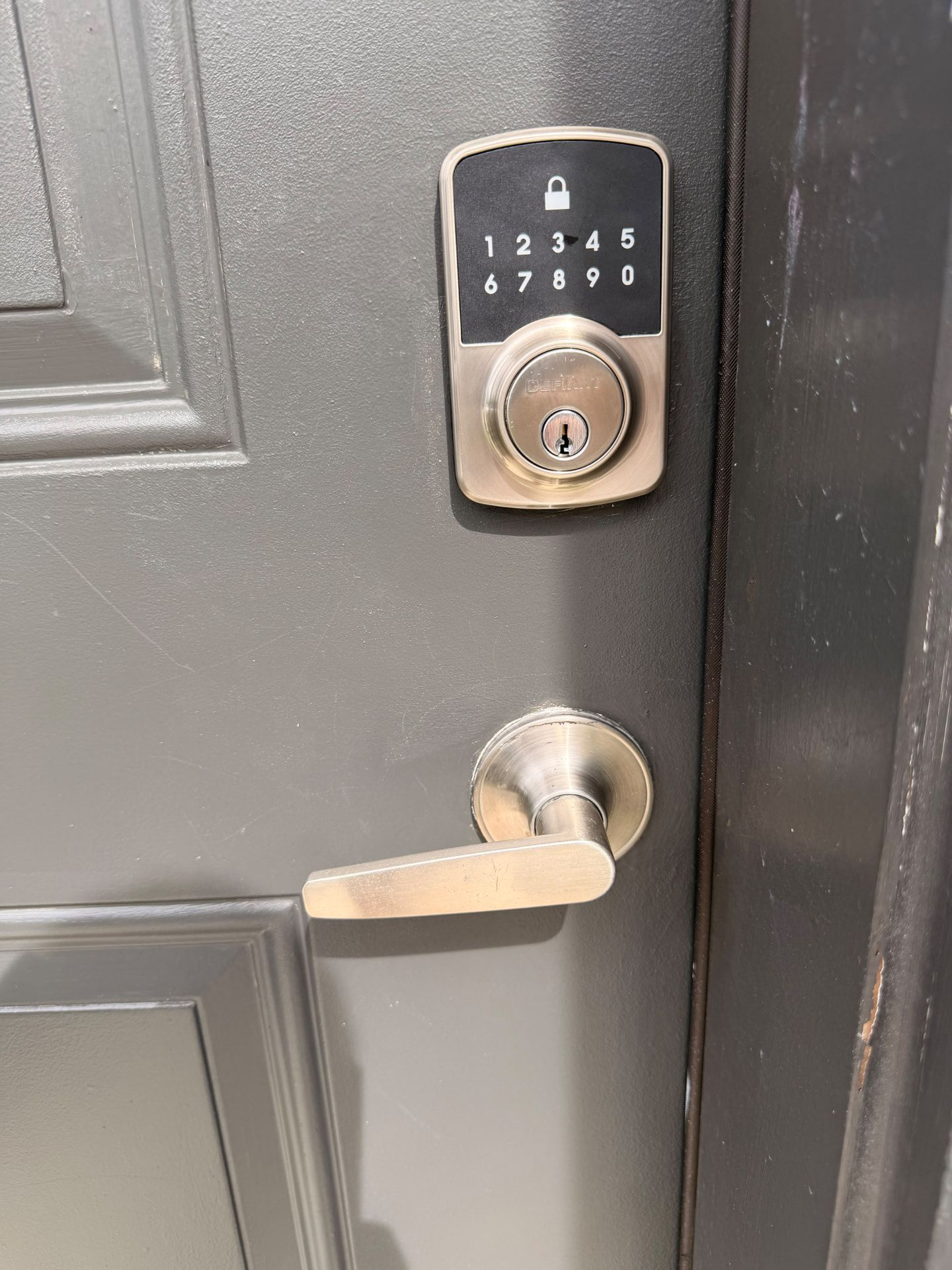
For a new smart-lock installation or lock repair, GO Locksmith's lock services can be discussed separately from software integration. Confirm that the selected hardware and physical work are supported before booking.
If the connection fails
Check which account owns the integration, whether the lock is online according to its provider, and whether the correct property was selected. Do not delete access settings casually while guests, residents, or staff need entry.
If a lock cannot be controlled through the management platform, use the lock provider's documented method and restore the integration after access is stabilized. Record what changed.
FAQ
Can any smart lock connect to property management software?
No. Compatibility depends on the lock provider, model, and the management platform's supported integrations.
Should I connect every property at once?
No. Start with one non-critical door, test the full access cycle, then expand carefully.
Can software fix a lock that does not close properly?
No. A binding door or misaligned bolt needs physical assessment separately from the software connection.
Do automated codes replace backup entry?
No. Keep a documented backup-entry plan for an outage, dead batteries, or a failed connection.
Can GO Locksmith connect any platform to any lock?
Compatibility must be confirmed for the selected hardware and software. Call to discuss the physical lock work separately.
Before you automate access
For physical lock repair, replacement, rekeying, or fresh installation, call GO Locksmith at (239) 412-1101 to check availability. GO Locksmith serves Fort Myers and Southwest Florida and also operates in Jacksonville.