Employee door access can follow changing shifts only if the installed access system supports the required schedules and, for automatic updates, a documented connection to the scheduling source. A recurring door-code schedule does not automatically read a changed staff rota. Start with individual credentials and a clear approval process, then decide which updates the system can safely automate.
- Employee door access scheduling and automatic rota synchronization are different capabilities.
- Assign individual credentials instead of a shared code when the system supports them.
- Test overnight shifts, exceptions, and revocation before depending on automation.
- GO Locksmith's confirmed commercial services do not establish support for software integrations.
First identify what your door system actually supports
The small-business keyless-entry guide compares access arrangements. This workflow concerns changes after a system is already installed: who gets entry, on which days, and what happens when the working schedule changes.
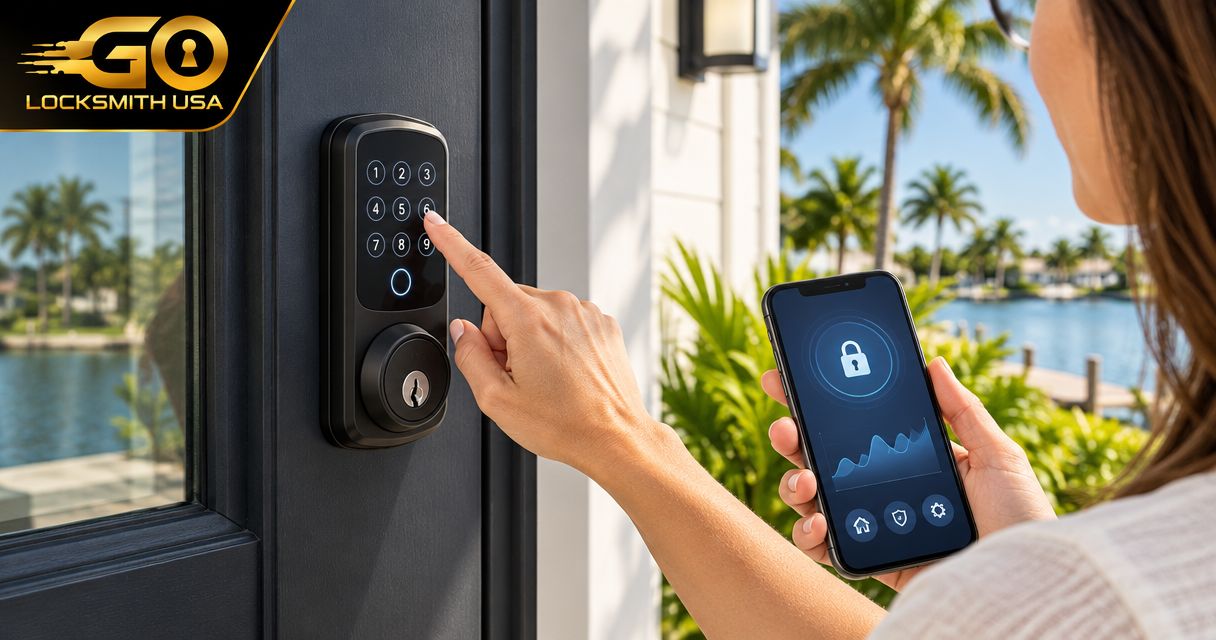
Do not start by connecting a staff calendar to a lock. Check the exact controller or lock documentation for individual credentials, timed permissions, administrator roles, and any supported integration. A keypad that accepts several codes can still lack the scheduling functions you need.
Schlage's published smart-lock guidance describes temporary code windows and scheduled locking on supported products. Those are different settings: scheduling when a door locks is not the same as scheduling when an employee may enter, and neither proves integration with payroll or rota software.
| Approach | Appropriate when | Strength | Limitation |
|---|---|---|---|
| Manual permission changes | Shifts change infrequently | A manager reviews each change | Updates depend on someone completing the task |
| Supported recurring access windows | Employees keep a regular pattern | Entry permissions follow configured times | A revised rota still needs a matching update |
| Documented scheduling integration | Both systems support a verified connection | Approved changes can flow between systems | Mapping errors and failed updates need monitoring |
Build an access record before automating
For each employee, record the authorized doors, credential identifier, approved work pattern, and person responsible for changes. Store that information securely rather than placing live access codes in a widely shared rota.
Distinguish staff entry from administrative control. Someone needing access for an opening shift does not necessarily need permission to add other users or change the whole door schedule.
Your approval record should answer:
- Who is allowed into this specific area?
- When does that permission start and end?
- Who approves an exception?
- Who removes access when employment ends?
- Who checks whether the update reached the device?
A shared code makes individual revocation harder. If the system only supports a common code, changing the code affects everyone who knows it. Do not claim individual tracking from that arrangement.
Convert the approved shift into an entry window
Use the installed system's documented permission controls. Decide whether staff need an approved preparation or closing period outside the paid shift; access should match the business's actual authorization, not an arbitrary buffer.
Define overnight work explicitly. A shift beginning on one day and ending the next can be mishandled if the system treats schedules as separate calendar days. Check the device's time zone and daylight-saving behavior before relying on time-based permission.
Use the current product manual for button names and available options. This is a planning workflow, not a universal set of app instructions.
Expected result: the authorized credential can enter the correct door during the approved window, while that same credential is rejected outside it. Do not test by leaving someone without safe access to leave or without an authorized fallback.
If you want automatic updates from a rota
Confirm a documented connection exists between the exact scheduling platform and access system. Ask the vendors what event triggers an update and how changes, cancellations, and removals are handled.
Map a stable employee identifier to the right credential. Names alone can create mistakes when people share a name or an account is renamed. Avoid testing against all live staff at once; use the provider's supported test process and a limited authorized rollout.
A useful test plan includes:
- A shift moved to another day.
- An overnight shift.
- A canceled shift.
- Temporary access to a different door.
- A disconnected controller or failed synchronization.
- Removal of an employee's access.
The expected result is not simply a success message from the scheduling app. Verify the effective permission in the access system and confirm the relevant device has received the change.
Keep a manual exception path
A manager should be able to approve an urgent correction without restoring broad access to everyone. Document who is contacted and how the correction is confirmed.
Plan for a synchronization failure: a changed rota should not silently leave obsolete access in place. Follow the vendors' documented recovery process and verify permission after the connection returns.
Do not use entrance scheduling to restrict emergency exit. OSHA's general workplace exit requirements say employees must be able to open exit doors from inside without keys, tools, or special knowledge. Building-specific hardware and requirements need separate assessment.
Offboarding is not just a canceled shift
Remove access through the documented revocation process when someone leaves. Check physical keys, fobs, codes, mobile credentials, and administrative accounts separately.
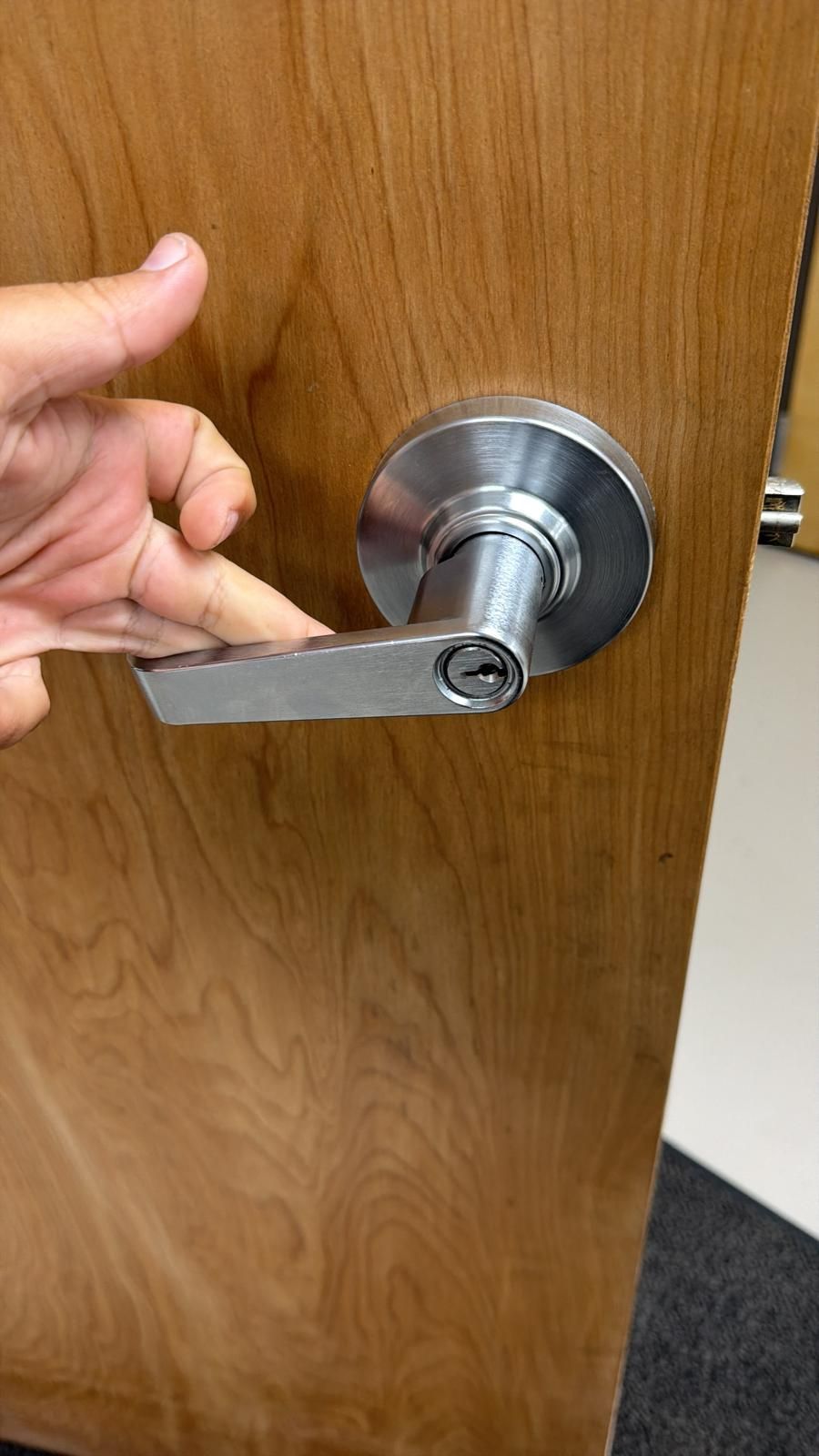
If an old physical key should no longer work, electronic schedule changes cannot rekey its cylinder. Discuss that mechanical need through GO Locksmith's commercial locksmith service, without assuming software synchronization is included.
FAQ
Will a keypad lock automatically update when I change a shift?
Not necessarily. Automatic updates require supported scheduling functions and a documented connection to the system where shifts change.
Is scheduled locking the same as scheduled employee access?
No. Scheduled locking controls a door action; scheduled access controls when a credential is accepted.
Should everyone use the same staff code?
Individual credentials are preferable when the system supports them and individual access must be revoked. A common code cannot identify its user reliably.
How should overnight shifts be configured?
Follow the system's documented treatment of schedules crossing midnight. Test the full approved window and verify time-zone settings.
Does canceling a shift remove every form of access?
No. Physical keys, administrator permissions, and other credentials need separate checks.
Can GO Locksmith set up my rota integration?
That software integration is not a confirmed GO Locksmith service. Ask the access-system and scheduling providers about supported connections.
Need to address the physical entrance?
GO Locksmith provides mobile commercial lock repair, replacement, rekeying, fresh installation, push bar, and door closer services. Call (239) 412-1101 to discuss a specific entrance in Fort Myers or Southwest Florida and check availability. Electronic-system compatibility must be confirmed separately.
Business hours: Sunday–Thursday 7:00 AM–11:00 PM; Friday 7:00 AM–5:00 PM; Saturday closed.